
If you were wondering where you went a few days ago or why your travel route is empty on your timeline, you need to remember one thing first. Google Maps Timeline does not create retroactive records of past movements even if you turn on the feature later.
Timeline history is saved only when Google account settings, phone location services, Google Maps permissions, and battery management are working together. In this article, I will summarize everything in one go, from the order in which to turn on the settings, checking history by date, verifying blank screens, and backing up and restoring before replacing the device.
What does Google Maps Timeline show?
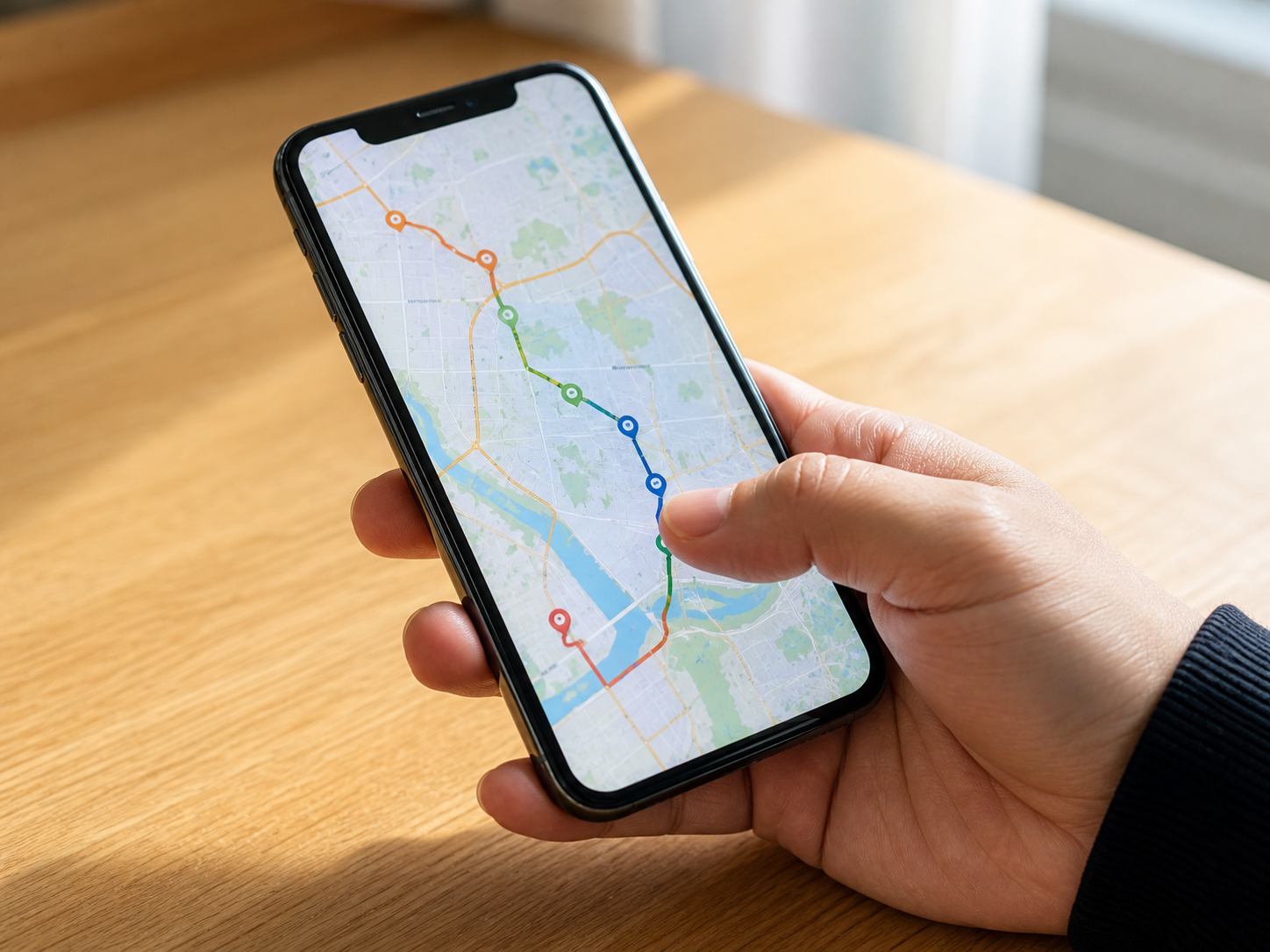
To start with the main point, the timeline allows you to view the places visited on a specific date and your travel route in chronological order. It is useful for retracing the places you stopped during a trip or organizing your driving routes by date.
Open the profile menu in the Google Maps app, go to Timeline, and select a date from the calendar to view the records for that day. On days with records, visited locations, travel routes, and places stayed may appear together.
Records begin accumulating from the moment you turn on the timeline, and movement information prior to activation is not automatically filled in later.
However, locations or routes may appear differently from your actual movement in situations where GPS signals are weak, such as indoors or underground, or when battery saving mode is enabled. Therefore, it is best to use the timeline as a reference record to look back on your travels.
You need to look at three things together for location tracking settings.
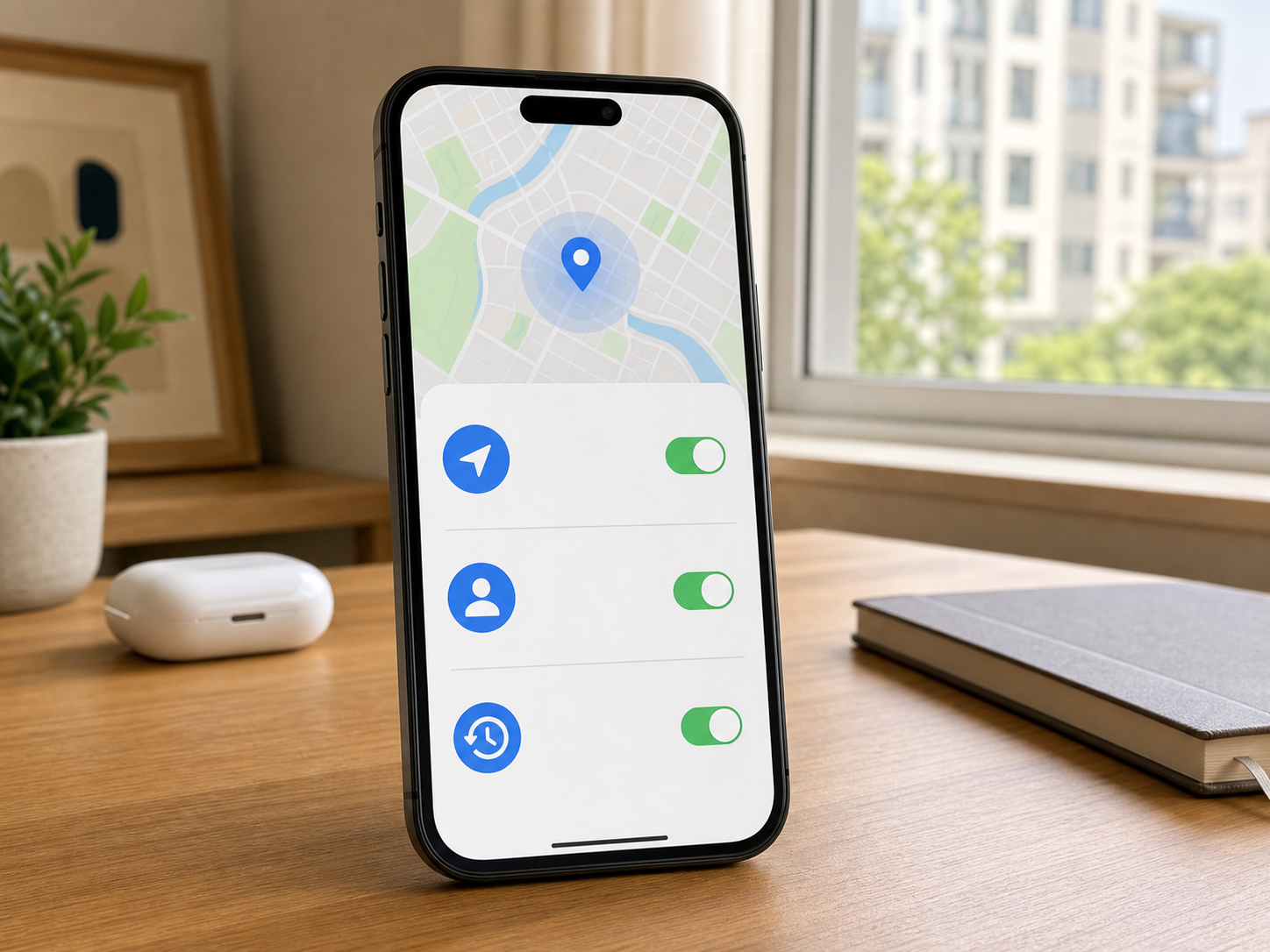
The first step is the phone's own location services. If the location feature is turned off in your smartphone settings, new records will not accumulate properly even if you enable Timeline in your Google account.
The second is the Google Maps app permission. If the app's location access is restricted, it is difficult to collect sufficient location data while on the move, and recording may be interrupted while the app is running in the background.
The third step is the Google account's Timeline or Location History settings. This feature must be enabled on the currently logged-in account, and if you use multiple accounts, the account where the history is saved must also be consistent.
| Inspection items | Things to check | When a problem arises |
|---|---|---|
| Mobile phone settings | Location services turned on | No full location history is saved |
| Google Maps permissions | Allow app location access | Record partially missing during movement |
| Google account | Enable Timeline and Location History | New records themselves are not accumulating |
| Battery Management | Low power and background restrictions removed | The path may be disconnected after turning off the screen |
How to turn on Timeline on Android and iPhone
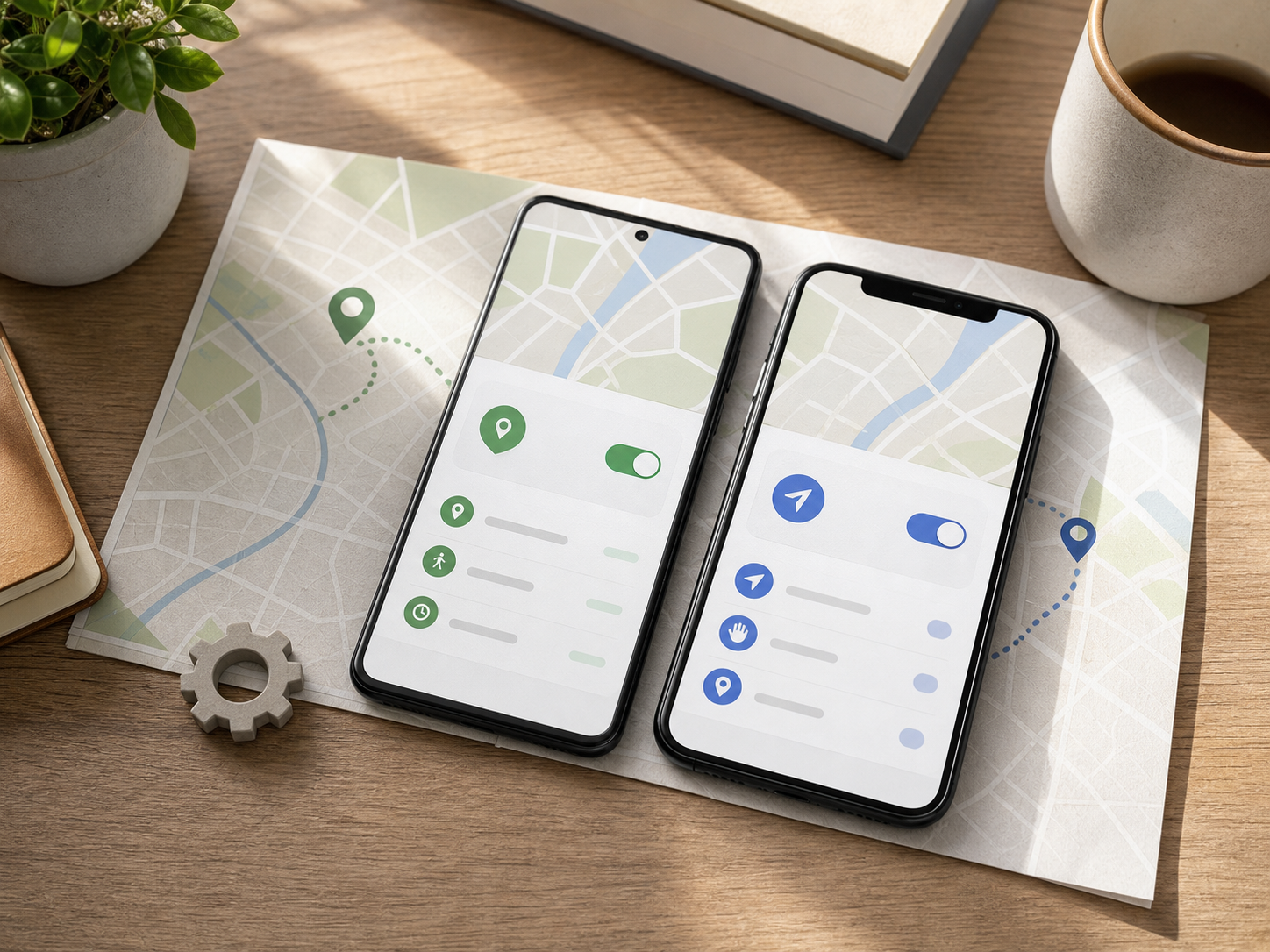
On Android, open the Google Maps app, tap your profile picture, and then go to My Timeline. Next, go to Location & Privacy settings and check the phone location settings and Timeline activation status in order.
It is indicated that Android Timeline is supported in Google Maps app version 11.106 or higher. Since Android Go devices do not support Timeline, it is efficient to first check the app version and device type along with the login account if the menu is not visible.
On the iPhone, select Google Maps in Privacy & Security, Location Services in the Settings app, and access location Always allowYou need to set it to that. Then, go to the Profile menu and Timeline within the Google Maps app to finalize the settings.
If you allow 'only while using the app' on your iPhone, travel sections where you are not looking at the screen may be omitted. For the Google Maps app on iPhone, version 6.93 or higher is required for Timeline support.
The sequence of checking records by date and inspecting the blank screen

If you have opened the timeline, select the desired date from the calendar. It is easier to narrow down the cause by distinguishing whether only one day is empty or if multiple recent dates are all empty.
First, try selecting a few other dates to see if records remain. If only specific dates are missing, it may have been affected by GPS reception or permission status at the time; if the entire period is empty, you should first check your account and feature settings.
The account is another point that is often overlooked. If the account currently logged into your Google Maps profile is different from the one you used previously, your timeline may appear to have disappeared, so please switch accounts to see if your history is displayed.
Next, you should check app updates, internet connection, low power mode and battery optimization, and background app restrictions in that order. After changing the settings, relaunching the Google Maps app and restarting your phone will help resolve temporary display errors.
To restore records after changing your phone

The timeline storage method has shifted from storing records only on the account server to being device-centric. For this reason, even if you install the app on a new smartphone and log in to the same account, records from your previous device may not appear immediately.
Timeline's before replacing the device or resetting The process of enabling the backup functionThis is important. Backup data is stored in the account in an encrypted state, and is restored by logging in on the new device and importing the data from the previous device through the Timeline Backup menu.
You should not factory reset your phone immediately after turning on backup. Since it may take several days for the backup contents to be reflected on the server, it is safer to save the backup state on the old device first and then transfer it to the new device.
Backup is a feature designed to restore data on a new device, while exporting separate files is a method for keeping important movement records apart. For data you do not want to lose again, such as during travel or business moves, it is best to manage them by distinguishing the purposes of the two methods.
Can deleted timelines be restored?
Just because the records are not visible on the screen does not mean they have been deleted immediately. If they were saved to another account or did not appear during the device change process, they may reappear through account switching, the state of the previous device, or backup data.
Conversely, records deleted manually by the user or automatically deleted may not be restored to their original state. In particular, if you factory reset the device or erase app data while backup is turned off, it is difficult to recover the timeline that existed only on the device.
Enabling the timeline again is simply a setting to save future movement history. It does not recreate location information for past dates that have not yet been recorded, so you must back up important data or save it in a separate file before deleting it.
To summarize Location Services, App Permissions, Account SettingsTurn on all options, and if you can't see the records, start by checking the account and date. If you plan to change your phone, the most realistic way to preserve your timeline is to enable backup on your existing device and proceed with the migration process after the changes have been reflected.